Guide to transferring your data from Chouchou Calendar to Biske
Operations in Chouchou Calendar
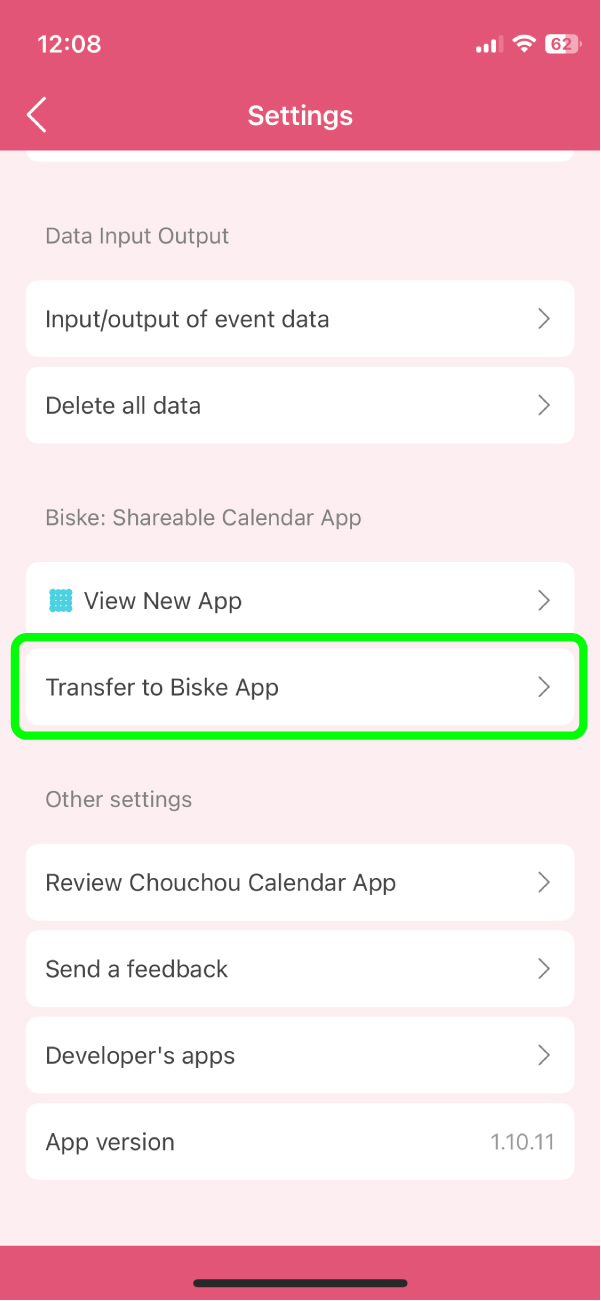
1. From the settings screen, select “Transfer to Biske”
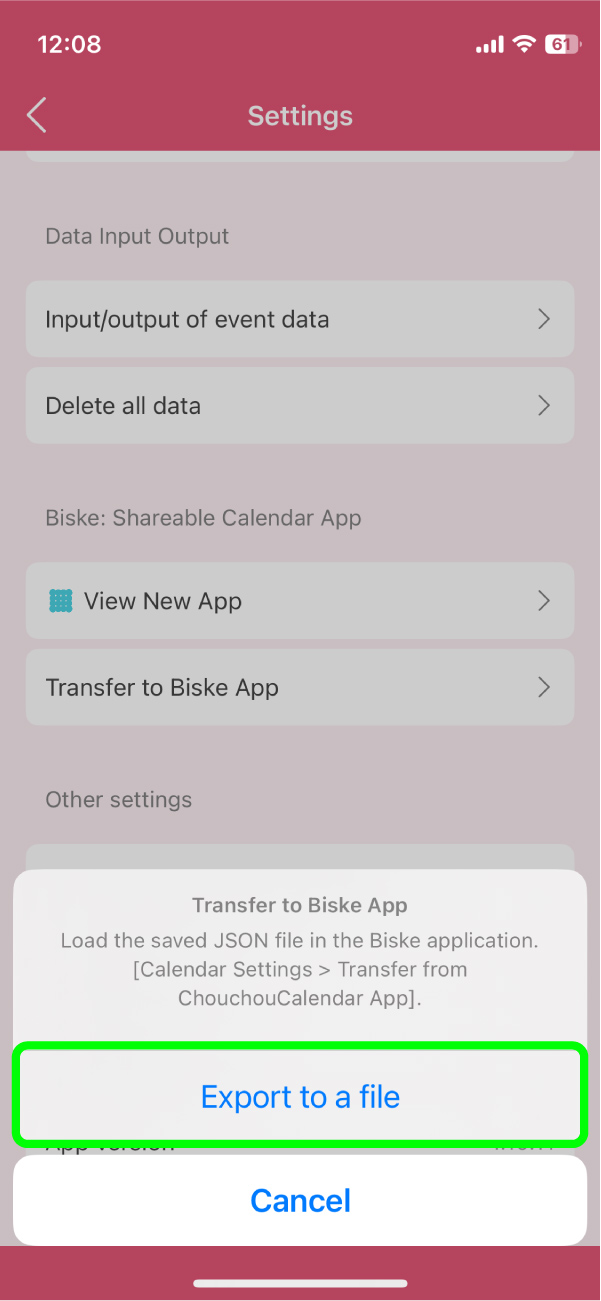
2. Select “Save to Files.”
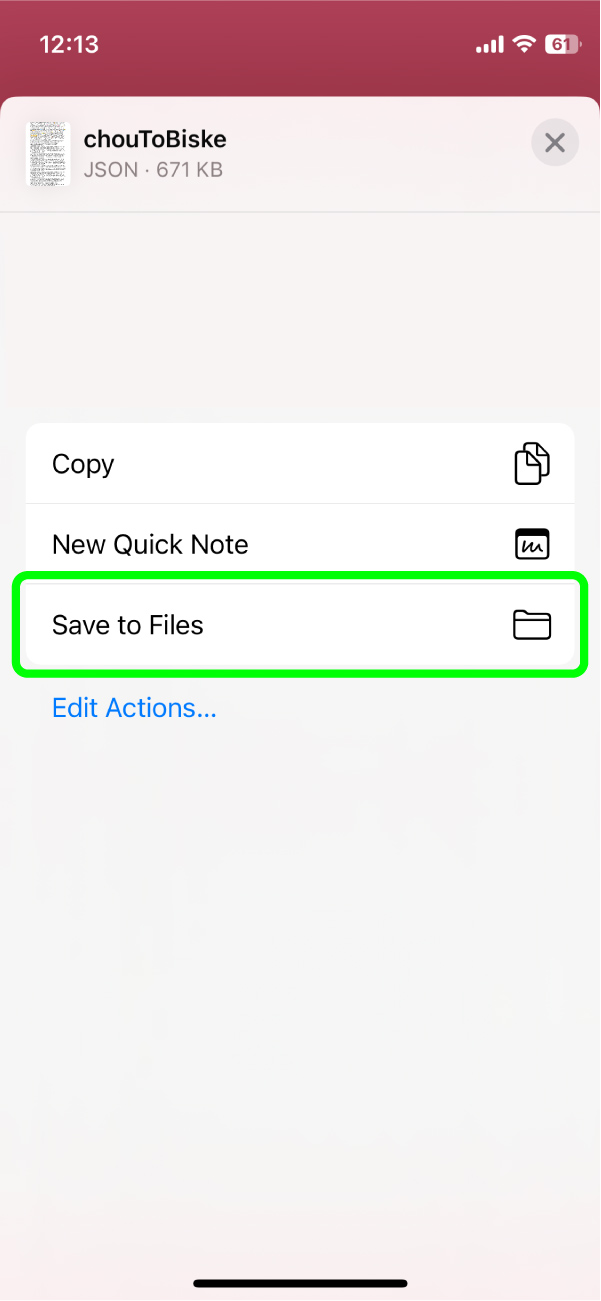
3. Choose “Save to ‘Files’” and save the transfer data in any location you prefer.
Operations in Biske
1. From the calendar screen, tap the menu button in the upper-right corner to open the calendar list.
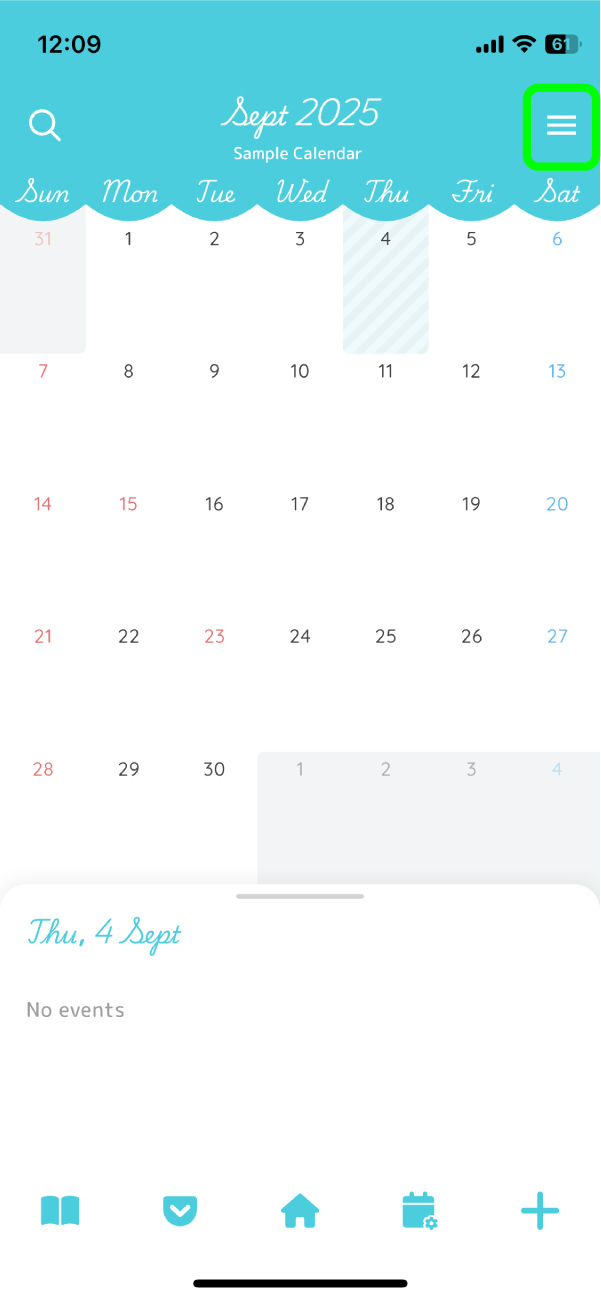
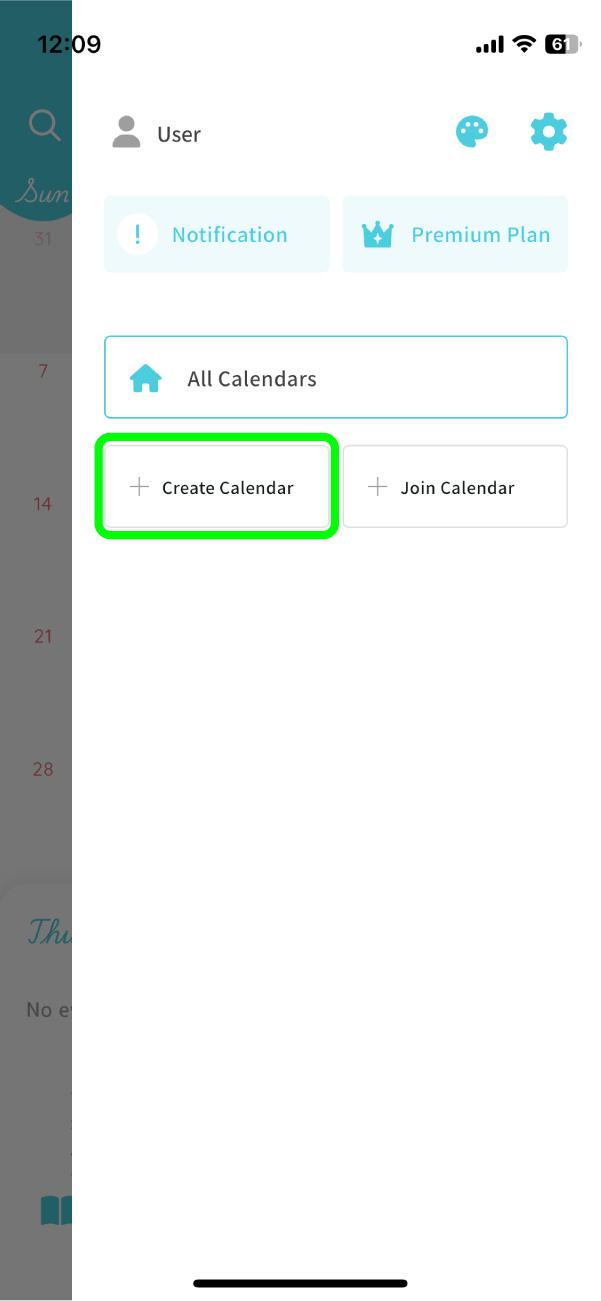
2. If you have not created a calendar yet, please create one.
If you already have a calendar, you can skip this step.
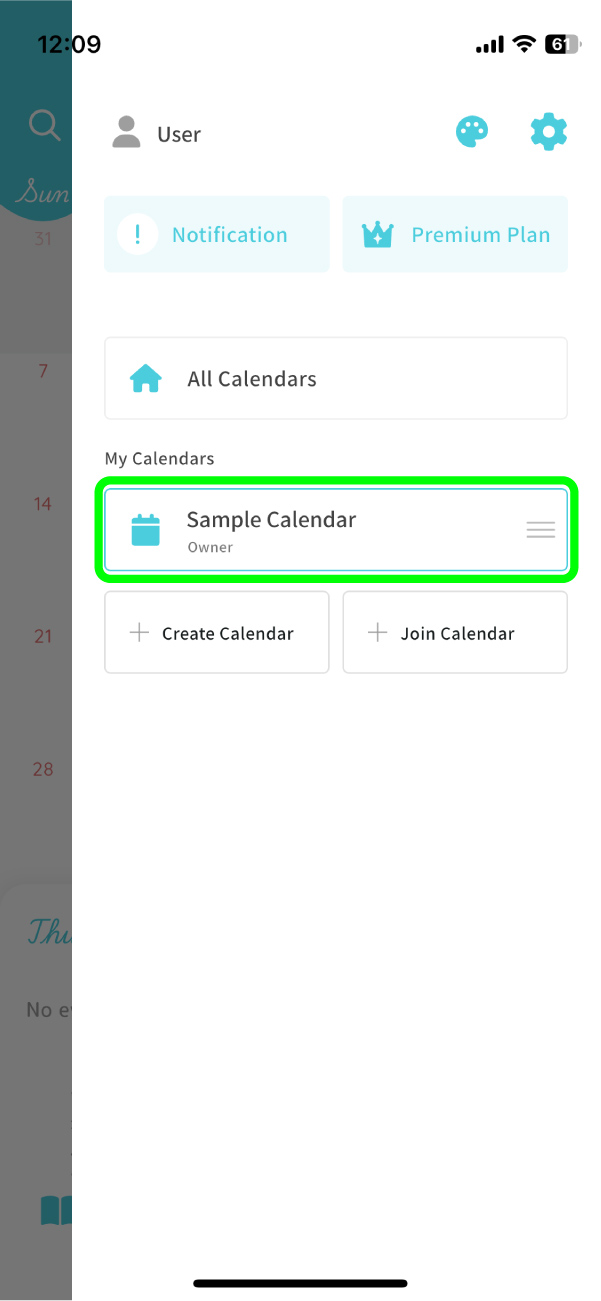
3. Tap the calendar where you want to import the transfer data.
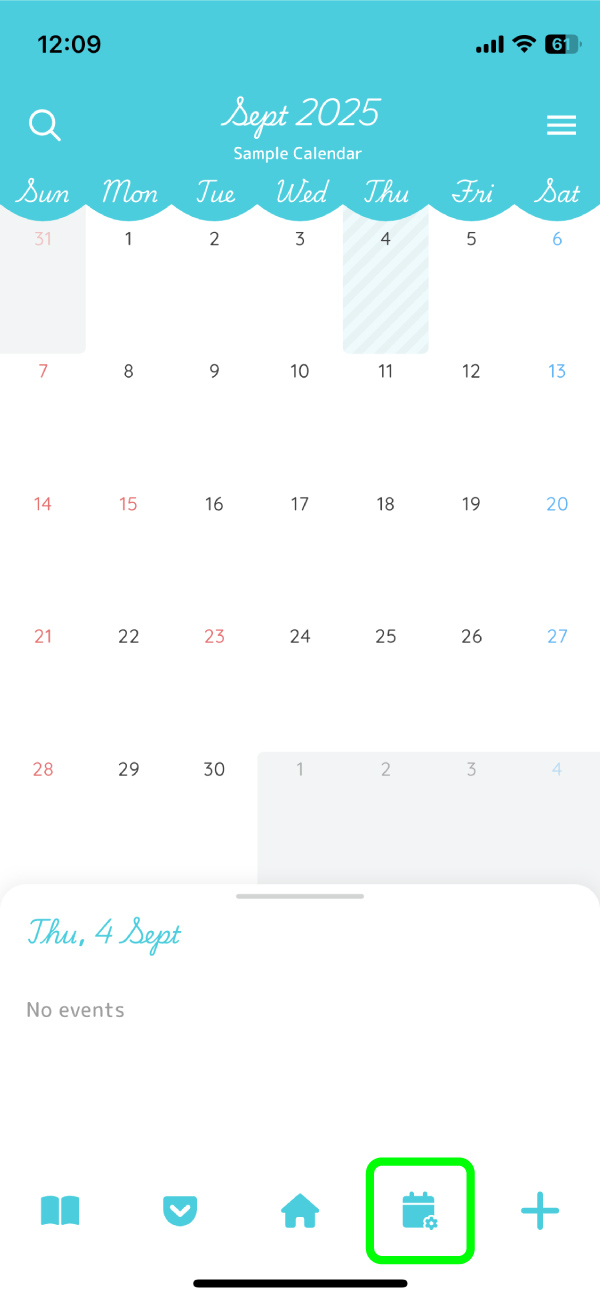
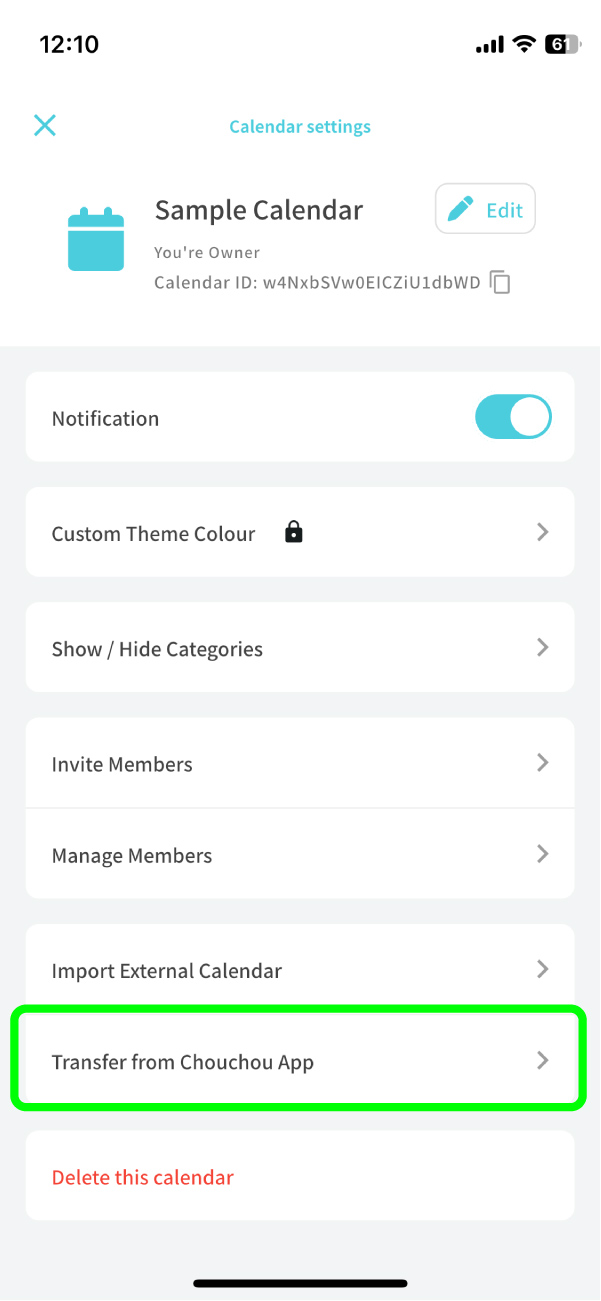
4. From the calendar screen, tap the second button from the right at the bottom to open the Calendar Settings screen.
5. In the Calendar Settings screen, select “Import from Chouchou Calendar”
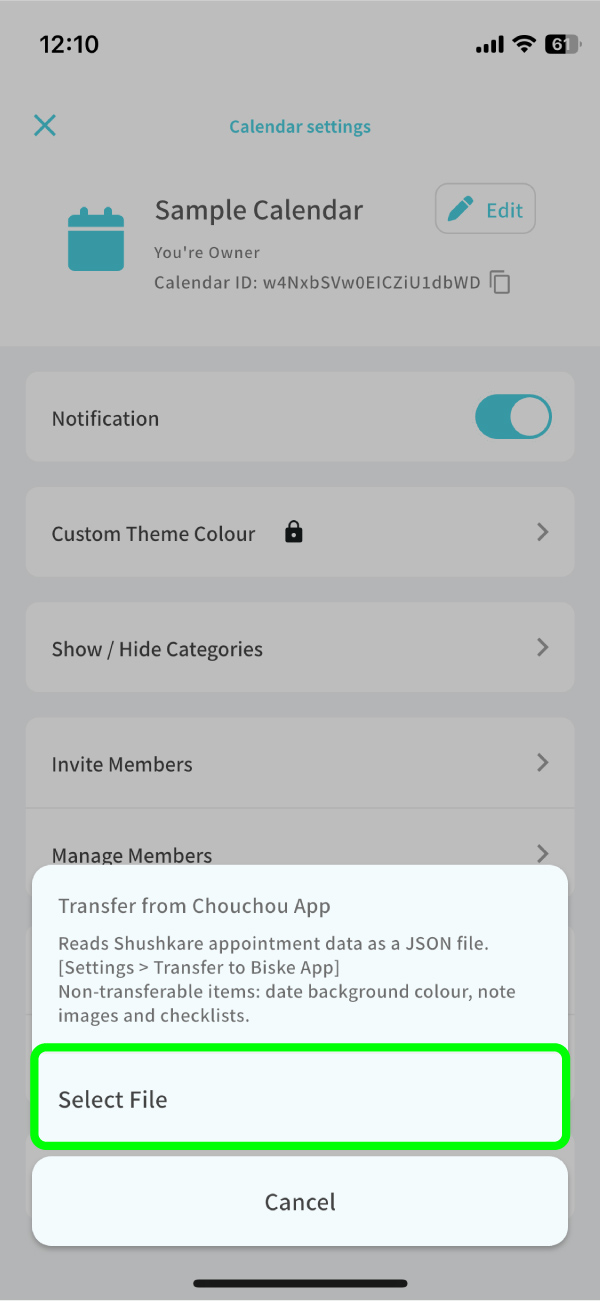
6. Tap “Select File”, choose the transfer data from Chouchou Calendar, and the transfer will be completed.