Change or Remove a Member’s Permission
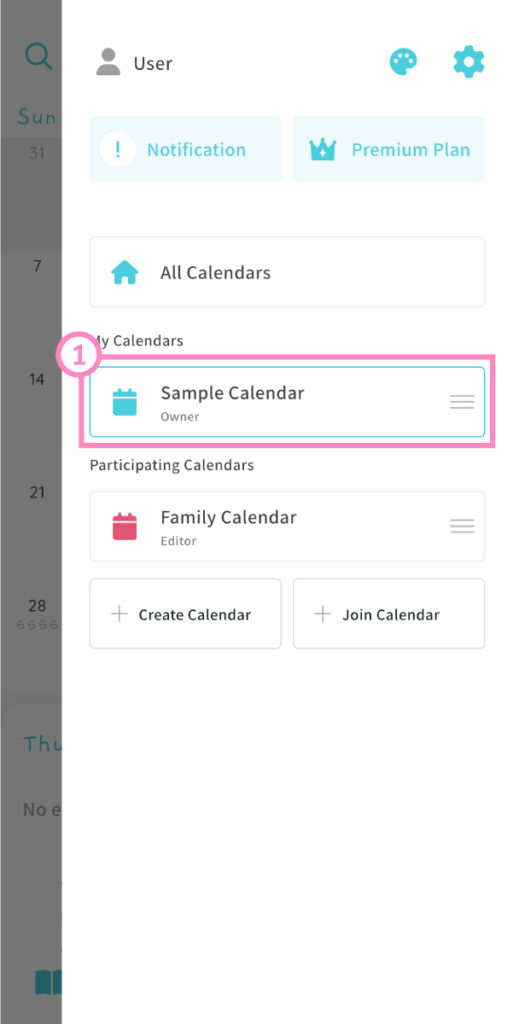
(1) From the menu screen, select the calendar that includes the member whose permission you want to change or remove.
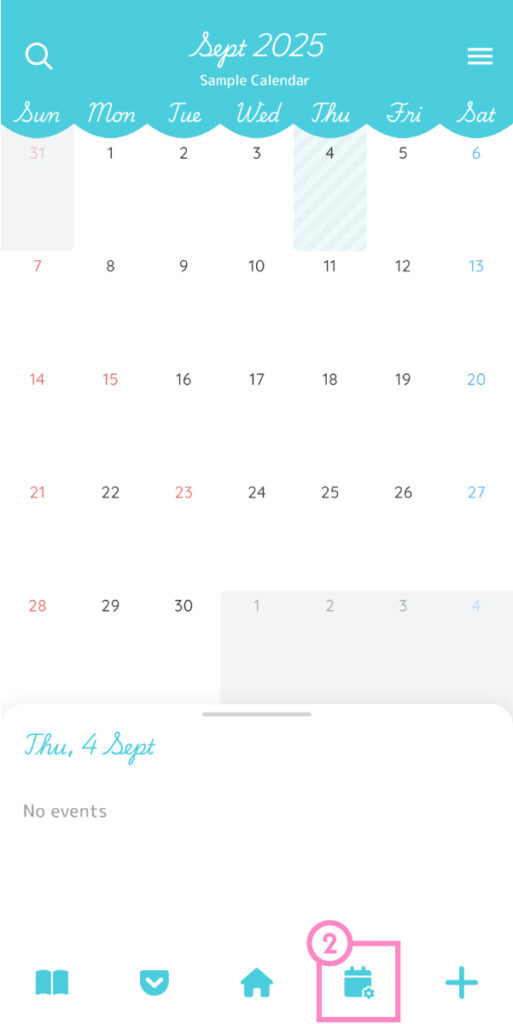
(2) On the calendar screen, tap the second icon from the right at the bottom to open the Calendar Settings screen.
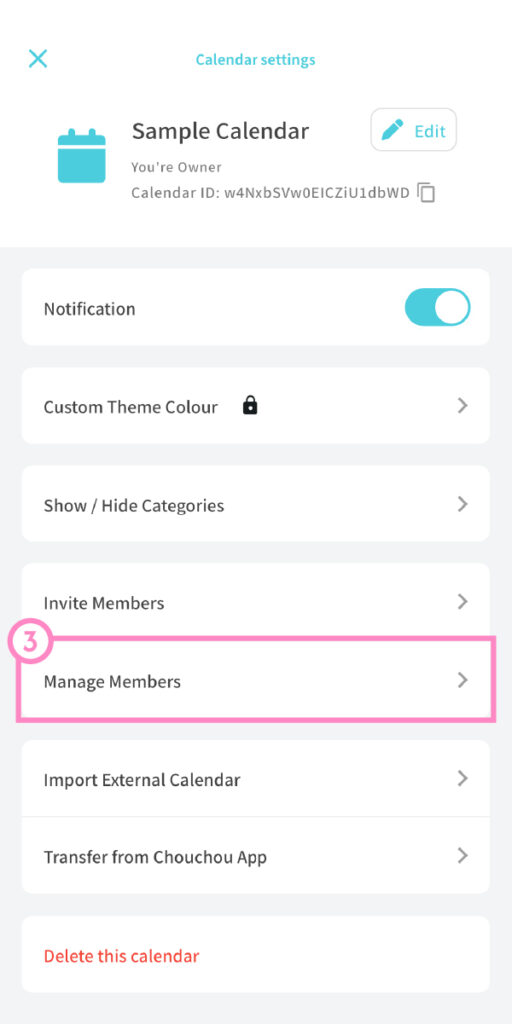
(3) In the Calendar Settings screen, tap Manage Members.

(4) Tap the member whose permission you want to change or remove.
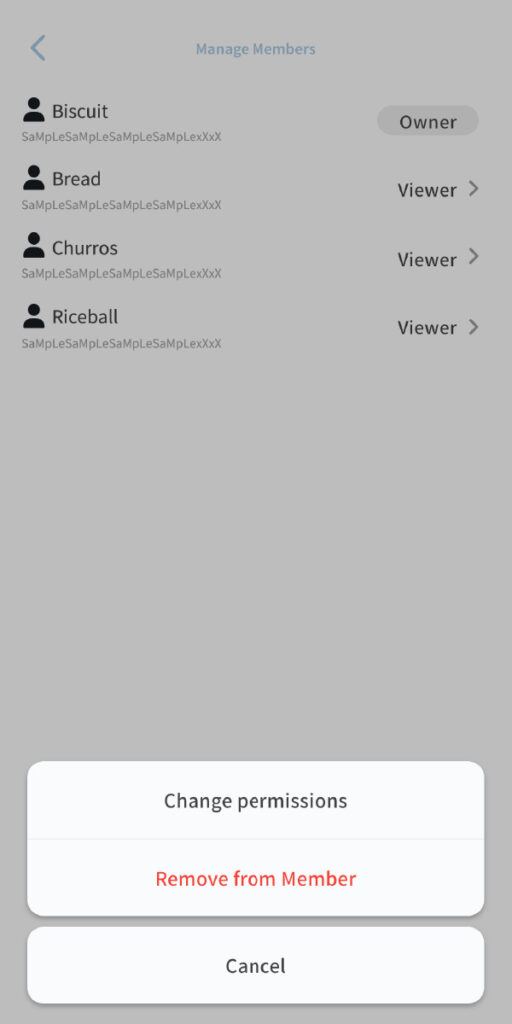
To change a member’s permission:
Tap Change Permission, then select the desired permission level.
For details about each permission type, please refer to the “Member Permission Levels” page.
To remove a member:
Tap Remove from Members.
A confirmation message saying “Remove this member from the calendar?” will appear — tap OK to confirm.