Calendar Screen Guide
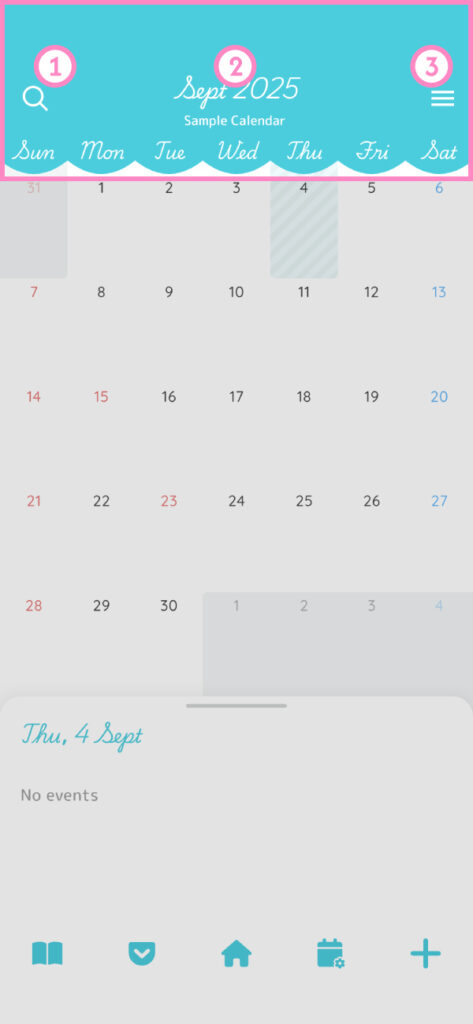
Top of the Calendar Screen
(1) Open the Search screen.
(2) Tap to open the screen to jump to a specific month and year. Swipe left or right to switch between calendars.
(3) Open the Menu screen.
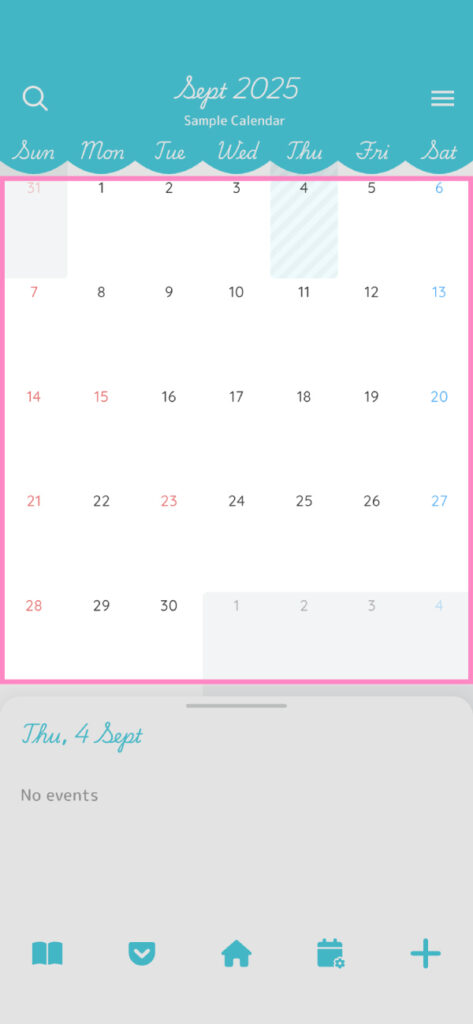
Calendar Area
Double-tap: Open the screen to create a new event on the selected date.
Long-press: Open the screen to set a background color for the selected date or day of the week.
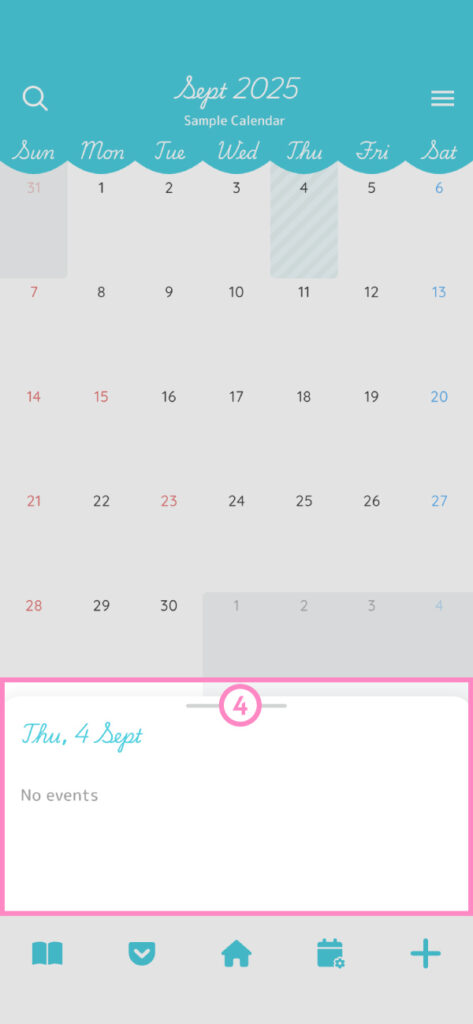
Event List Area
(4) Drag Handle
- Swipe up: Expand the event list area to see events for other dates in the month.
- Swipe down: Shrink the event list area to show more of the calendar.
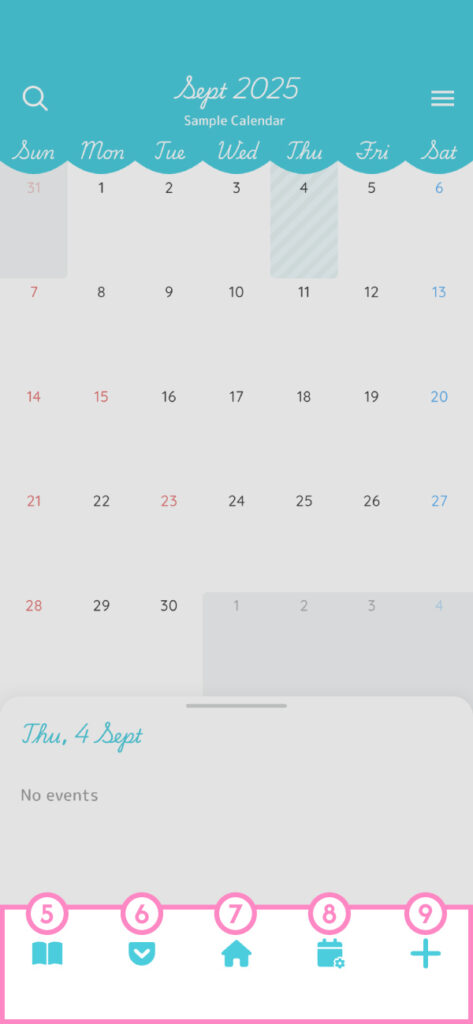
Bottom of the Calendar Screen
(5) Open the Notes screen. If a monthly note exists, the icon will display with an “M.”
(6) Open the Pocket screen.
(7) When a date other than today is selected, tap this button to return to Today.
(8) Open the Calendar Settings screen.
(9) Open the screen to create a new event.